2.3 Network properties setting
8.6.1 GET /download/pattern/length
8.6.2 POST /upload/pattern/length
8.6.3 POST /fullduplex/pattern/length
9 Test setup when using 2 FPGA boards
9.1 Environment setup when using 2 FPGA boards
9.2.1 Set parameters and start a server
9.2.2 Transmit data test (Server to client)
9.2.3 Receive data test (Client to server)
This document describes the instruction to demonstrate the operation of TLS 1.3 Server 10Gbps IP Core (TLS10GS-IP) on ZCU102 Evaluation Board. In the demonstration, TLS10GS-IP are used to establish a secure connection using the Transport Layer Security protocol version 1.3 over TCP by handling TLS1.3 handshake, encrypting and decrypting data transferred between client and server. Additionally, HTTPS is chosen as the application layer to simplify the testing of data transfer between a standard client and the TLS10GSdemo.
This instruction explains the process for users to use a web browser as a client to upload or download data patterns from TLS10GSdemo, obtaining results similar to communication with the provided example node.js server, the use of the “client” application to test transfer speed between a PC and TLS10GSdemo, along with the comparison of test results between two FPGA boards.
1 Environment Setup
To operate TLS10GS-IP demo, please prepare following test environment.
1) FPGA development boards (ZCU102 board).
2) Test PC with 10 Gigabit Ethernet or connecting with 10 Gigabit Ethernet card.
3) 10 Gb Ethernet cable:
a) 10 Gb SFP+ Passive Direct Attach Cable (DAC) which has 1-m or less length
b) 10 Gb SFP+ Active Optical Cable (AOC)
c) 2x10 Gb SFP+ transceiver (10G BASE-R) with optical cable (LC to LC, Multimode)
4) Micro USB cable for JTAG connection connecting between ZCU102 board and Test PC.
5) Micro USB cable for UART connection connecting between ZCU102 board and Test PC.
6) Vivado tool for programming FPGA installed on Test PC.
7) Serial console software such as TeraTerm installed on PC. The setting on the console is
8) Baudrate=115200, Data=8-bit, Non-parity and Stop=1.
9) Batch file named TLS10GSIPTest.bat” (To download these files, please visit our web site at www.design-gateway.com)
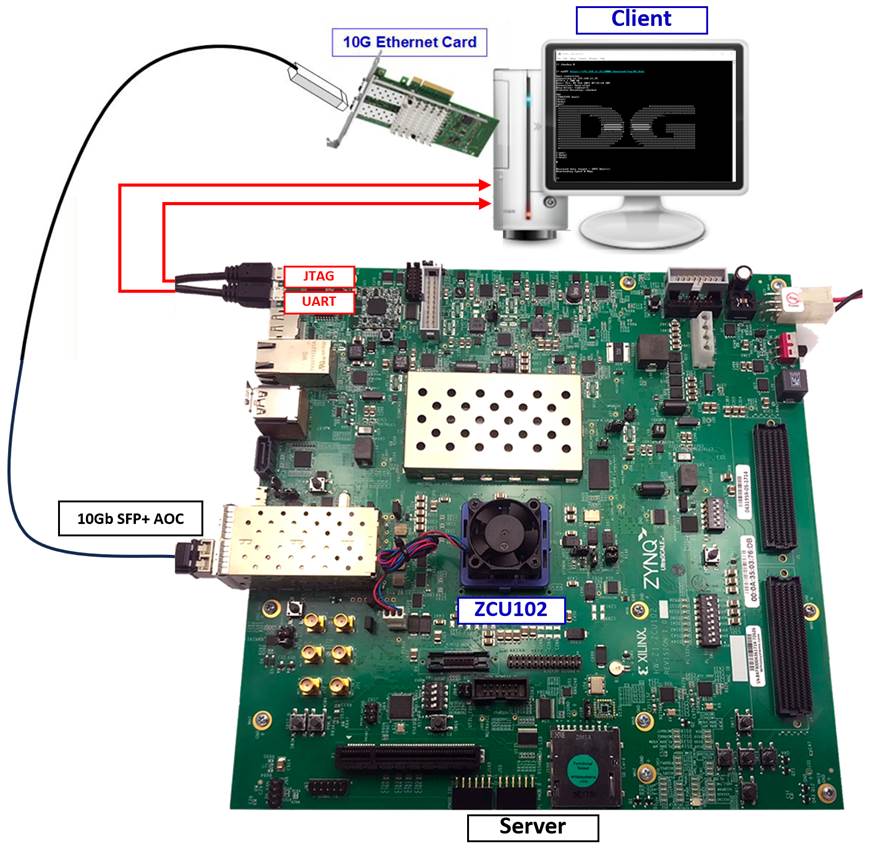
Figure 1 TLS10GS-IP demo environment on ZCU102 board
2 PC Setup
Before running demo, please check the network setting on PC. The example of setting 10 Gb Ethernet card is described as follows.
2.1 IP setting
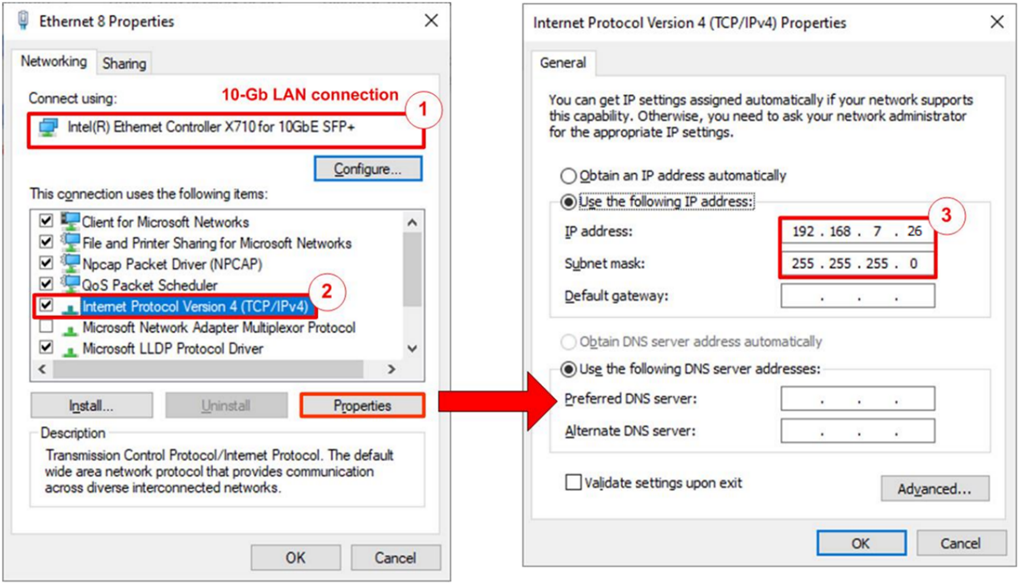
Figure 2 Setting IP address for PC
1) Open Local Area Connection Properties of 10 Gb connection, as shown in the left window of Figure 2.
2) Select “TCP/IPv4” and then click Properties.
3) Set IP address = 192.168.7.26 and Subnet mask = 255.255.255.0, as shown in the right window of Figure 2.
2.2 Speed and duplex setting
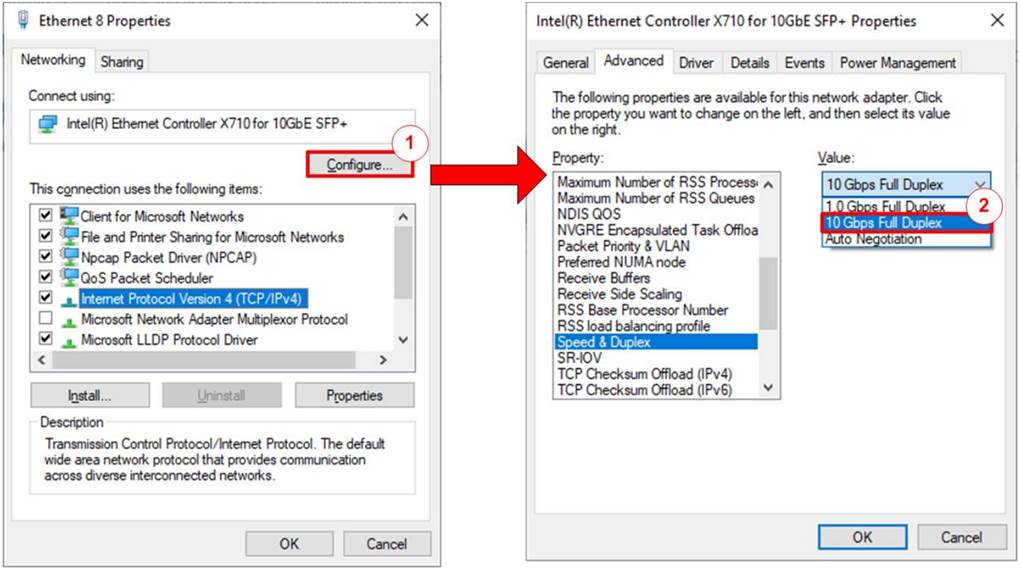
Figure 3 Set Link Speed = 10 Gbps
1) On Local Area Connection Properties window, click “Configure”, as shown in Figure 3.
2) On Advanced Tab, select “Speed and Duplex”. Set the value to “10 Gbps Full Duplex” for running 10 Gigabit transfer test, as shown in Figure 3.
2.3 Network properties setting
Some of network parameter setting may affect to network performance. The example of network properties setting as follows.
1) On “Interrupt Moderation” window, select “Disabled” to disable interrupt moderation which would minimize the latency during transferring data, as shown in Figure 4.
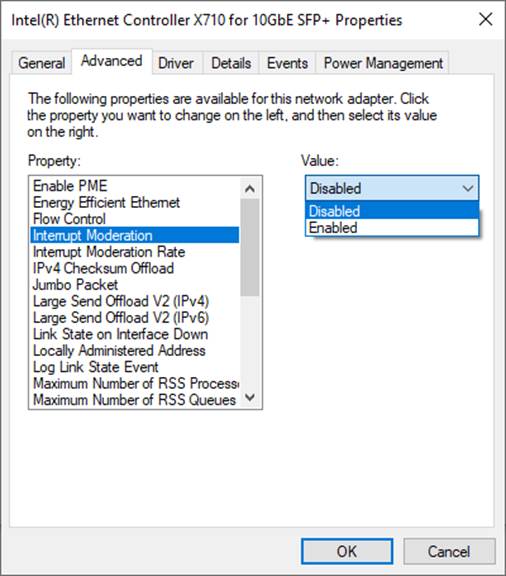
Figure 4 Interrupt Moderation
2) On “Interrupt Moderation Rate” window, set value to “OFF”, as shown in Figure 5.
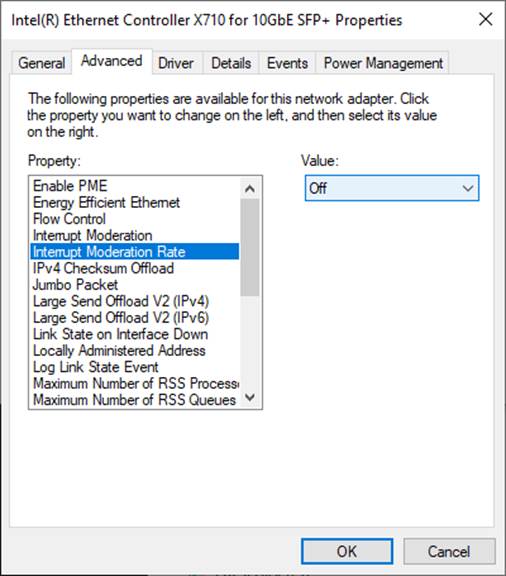
Figure 5 Interrupt Moderation Rate
3) On “Jumbo packet” window, set value to “9014 Bytes”, as shown in Figure 6.
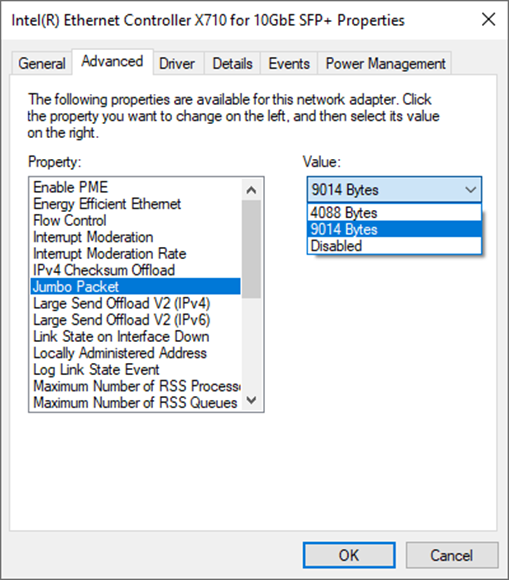
Figure 6 Jumbo packet
4) On “Receive Buffers” window, set value to the maximum value, as shown in Figure 7.
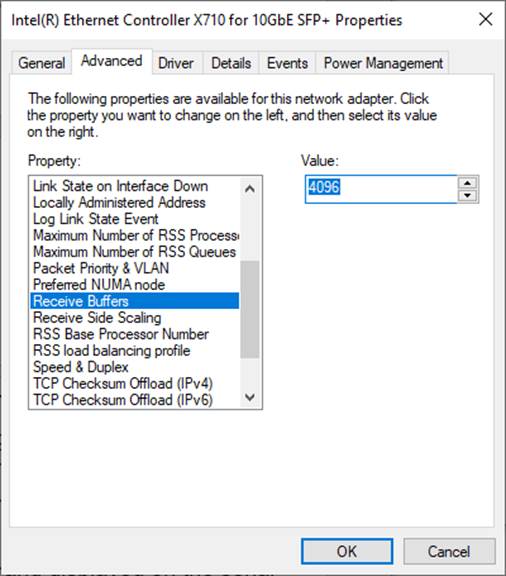
Figure 7 Receive Buffers
5) On “Transmit Buffers” window, set value to the maximum value, as shown in Figure 8.
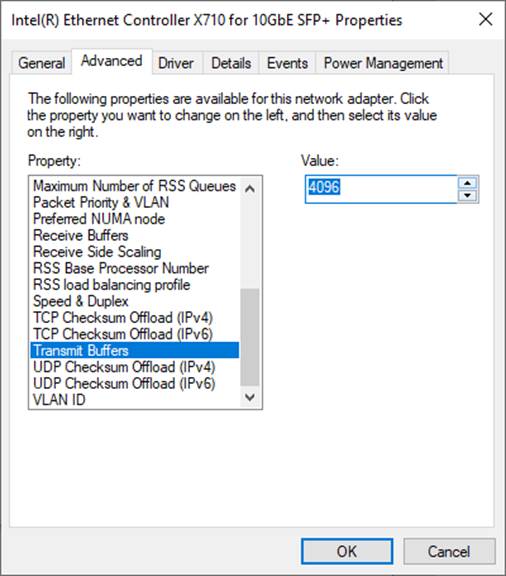
Figure 8 Transmit buffers
3 Client web browser
Users can use a web browser for downloading a data pattern from both Node.js server and TLS10GSDemo by GET method and uploading a data pattern to the server via POST method.
For downloading a data pattern, users can input URL in the following format,
https://ip:port/direction/pattern/length
Where ip represent server’s IP address in dot-decimal notation
port represent server’s port number
direction represent download or upload
pattern represent data pattern
b1: increasing binary pattern, t1: increasing text pattern,
b0: decreasing binary pattern, t0: decreasing text pattern
length represent data length in byte
For example, server’s IP address is 192.168.7.26, port number is 60001 and the user's URL is https://192.168.7.26:60001/download/t1/123. Secure connection is established, the 123-byte increasing text pattern is displayed in the web browser, as shown in Figure 9.
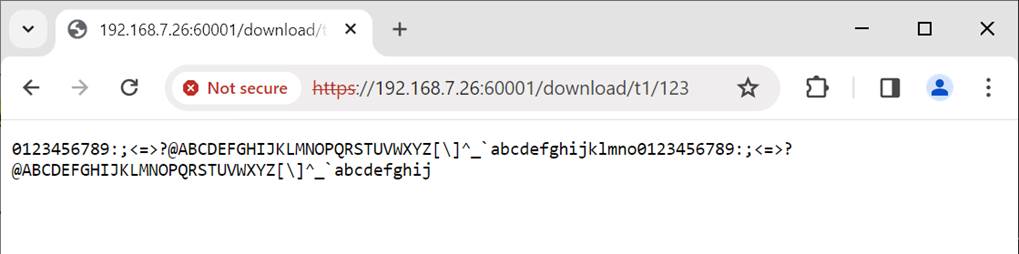
Figure 9 Decreasing text pattern shown in web browser
Remark
- Our tested web browser is Google Chrome version 116.0.5845.141.
- The certificate used in this demonstration is self-signed, meaning it was not issued by a certification authority (CA). When attempting to access the server with a self-signed certificate, the web browser may generate a certificate unknown error and then terminate the connection. To bypass certificate errors, users can run the Chrome browser from the command prompt with the “ignore-certificate-errors” parameter. The banner “You are using an unsupported command-line flag: -- ignore-certificate-errors. Stability and security will suffer.” will appear when Google Chrome has already detected the command-line option, as shown in Figure 11.
In case of downloading a binary pattern, a “Save as” dialog window appears. Users can save the file and view the binary data after the download process is complete.
Users can securely upload data through a web browser using uploadPage.html. The HTML page can be opened in the chrome browser by executing the following command in the command prompt: “<path to chrome.exe>” ignore-certificate-errors <path to html page>, as shown in Figure 10.
For example, “C:\Program
Files\Google\Chrome\Application\chrome.exe” --ignore-certificate-errors
D:\TLS10GS\download\client\uploadPage.html

Figure 10 Example command line to open uploadPage.html
Upload menu is displayed in the web browser, as shown in Figure 11. Users can set server’s IP address, server’s port number, select the data pattern and data length. The HTML page will prepare the data and send a POST command along with the data pattern to the server when the “POST” button is pressed. Because the length of the data is greater than or equal to 16,000 bytes, only the data length and transfer speed are displayed on server console when the upload is completed, as shown in Figure 12.
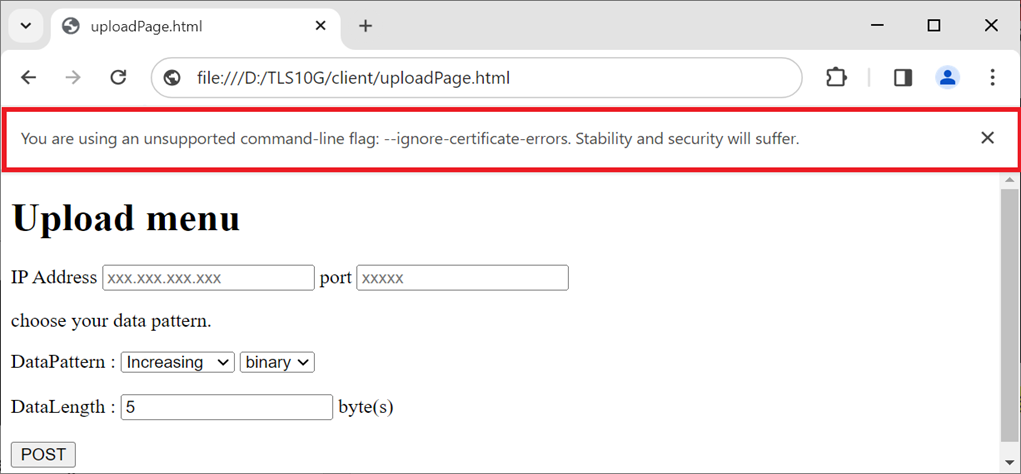
Figure 11 Secured upload page

Figure 12 Server’s console when client upload large data
4 Test software on PC
“client” application is designed to run on PC as an example client for testing performance of TLS10GS-IP via ethernet. When starting client application, client’s IP address of network interface is displayed on application console, as shown in Figure 13.
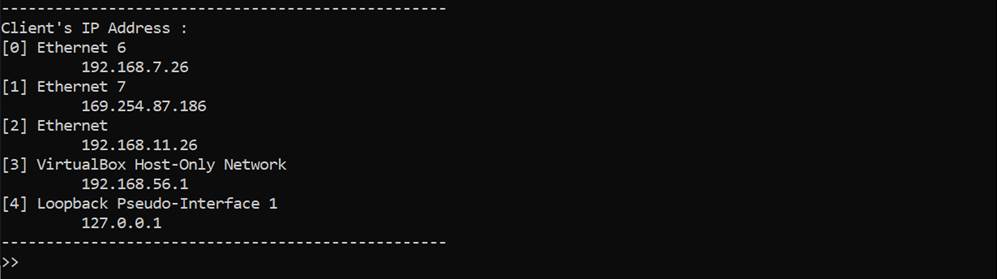
Figure 13 Client application console
Users can use client application to download, upload data and test full duplex by using the following command.
4.1 Download data
command> myGET https://ip:port/download/pattern/length
This command simulates GET method of HTTP to download data from the server. Users can input URL and then received data is displayed on the serial console. “client” application will receive TxData from server and count the number of received data to validate whether the number of received data is matched the value form URL. For optimal data transfer speed, the received data remains undecrypted and unverified during the transfer process. Upon completion of data transfer, the last block of data will be decrypted and verified. Then the transfer speed is displayed on server console. If the data length is less than 16 kB, the received data, including the HTTP header, is also displayed, as shown in Figure 14.
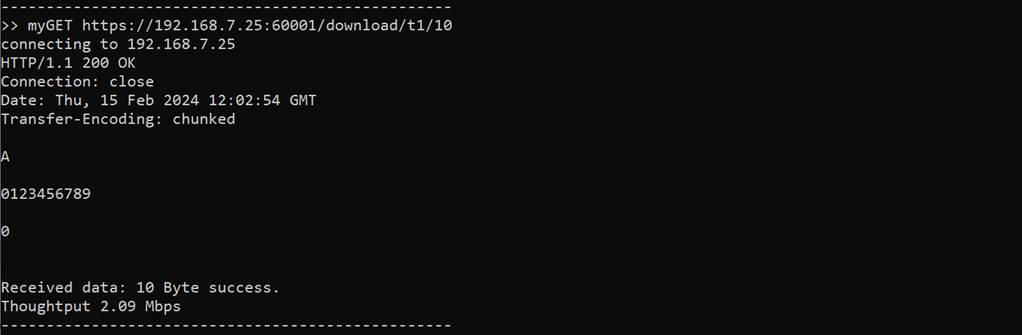
Figure 14 Client application console when downloading data from server
4.2 Upload data
command> myPOST https://ip:port/upload/pattern/length
This command simulates POST method of HTTP to upload data to the server. Users can indicate data pattern and data length in URL. “client” application will prepare the encrypted data pattern corresponding to data pattern from URL and send to server continuously. The transfer speed will be displayed on server application console, as shown in Figure 15.

Figure 15 Client application console when uploading data to server
4.3 Full duplex test
command> myFullduplex https://ip:port/fullduplex/pattern/length
This command is used to transfer data between client and server in full duplex mode. It simulates POST method of HTTP with the fullduplex URL that request data pattern from server and also upload data pattern to the server. Users can indicate data pattern and data length in URL. After transmitting and receiving data are done, data length and transfer speed are displayed, as shown in Figure 16.
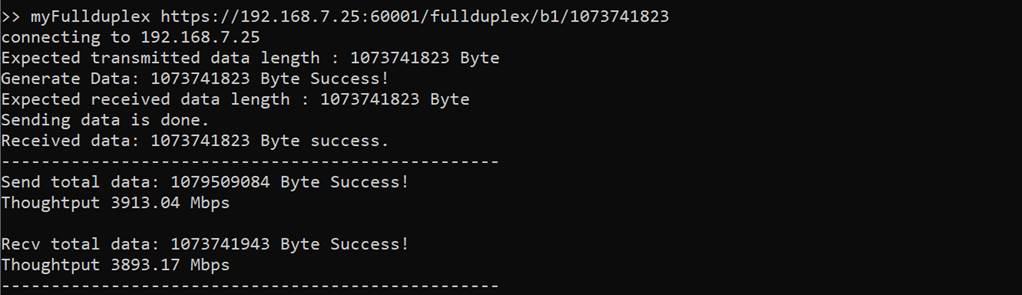
Figure 16 Client application console when full-duplex testing
5 Node.js server
In this demonstration, a sample server is created using Node.js. The server opens port 60001 for HTTPs connection. The required files for running the server are provided in server folder which contains the file as follow,
1) serverDemo.js for running server.
2) key.pem and cert.pem as a sample RSA key information and server’s certificate.
When serverDemo.js is executed*, IP address and port number of server are displayed on console, as shown in Figure 17.
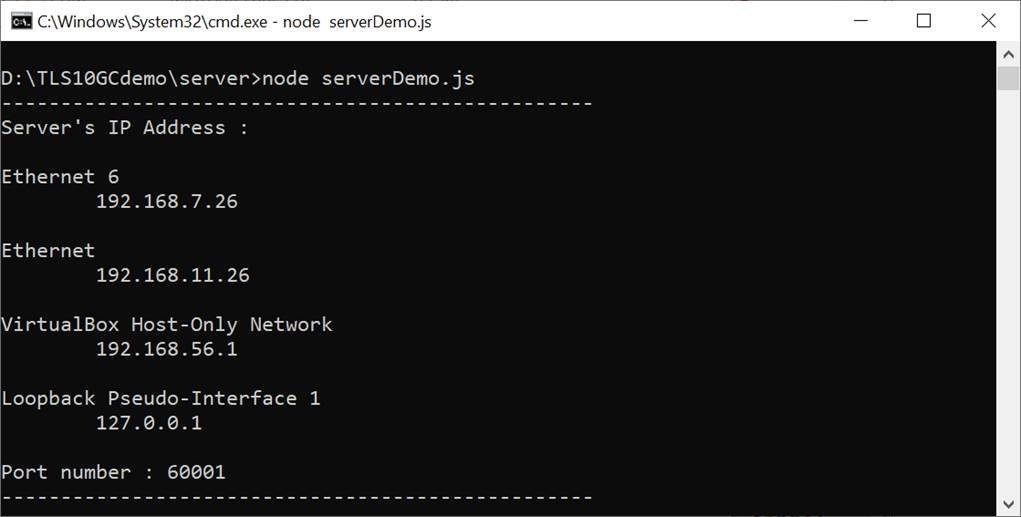
Figure 17 Server console when serverDemo.js is executed
Caution
When testing serverDemo.js with TLS10GCdemo, the FPGA board must be programmed before executing serverDemo.js to ensure that the server can detect the Ethernet interface between the FPGA board and the PC and can communicate properly.
By default, serverDemo.js does not verify data to optimize transfer speed. However, users can enable the data verification feature by including the “-v” parameter when executing serverDemo.js, as shown in Figure 18.
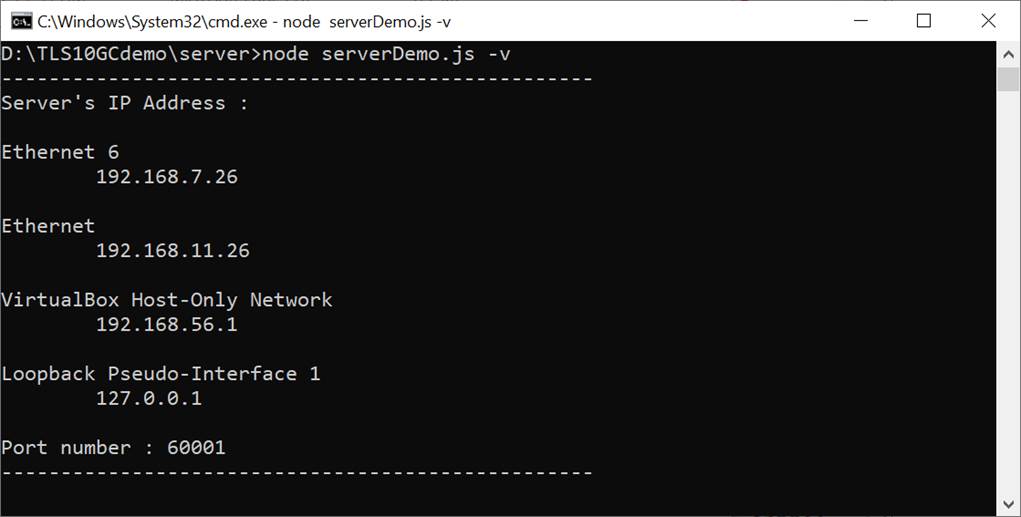
Figure 18 Server console when enabling verifying data
In case of client cannot access node.js server, please check firewall setting as below,
1) Go to Windows Defender Firewall with Advanced Security
2) Click on “Inbound Rules”
3) Search for “Node.js JavaScript Runtime” and open its properties
4) Go to “Protocols and Ports” tab and set Protocol type = TCP, Local port = Specific Ports that server on PC open. By default, the sample node.js server opens port 60001. Local port number is set to 60001, as shown in Figure 19.
5) Go to “Advanced” tab and mark the profile boxes that match the network profile of ethernet card, as shown in Figure 20.
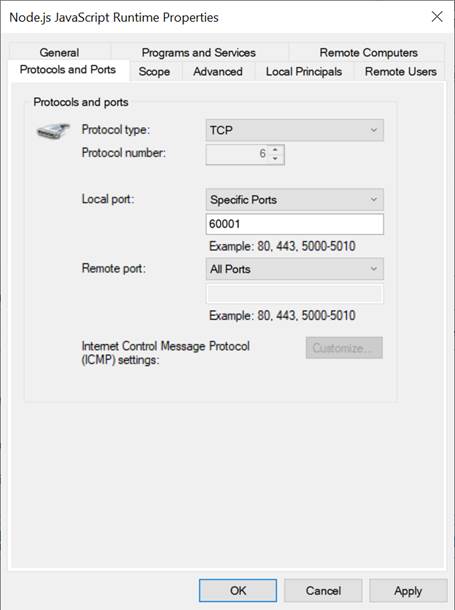
Figure 19 Protocols and Ports setting
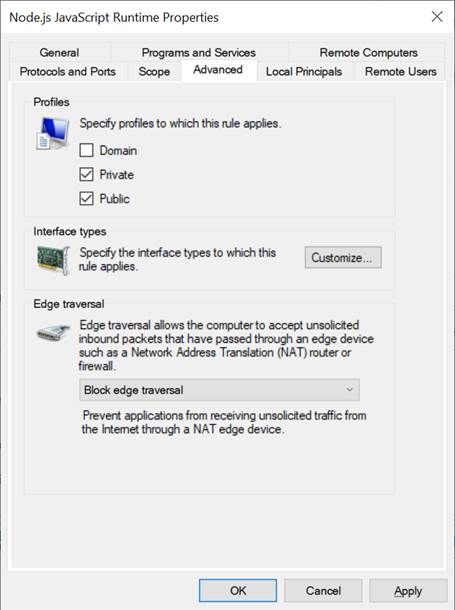
Figure 20 Advanced setting
Clients can download data patterns by sending a GET command with URL.
For downloading data pattern, there are 4 data patterns which are increasing binary, decreasing binary, increasing text and decreasing text pattern. When a server receives a GET request, the data pattern and the length of requested data are displayed on the server console, as shown in Figure 21.

Figure 21 Server console when client download data pattern
Clients can upload data to the server by sending a POST command followed by the uploaded data. After the transfer is completed, the received data, its length and the transfer speed are displayed on the server console, as shown in Figure 22. If data length exceeds 16 kB, only the data length and transfer speed are displayed on the server console.
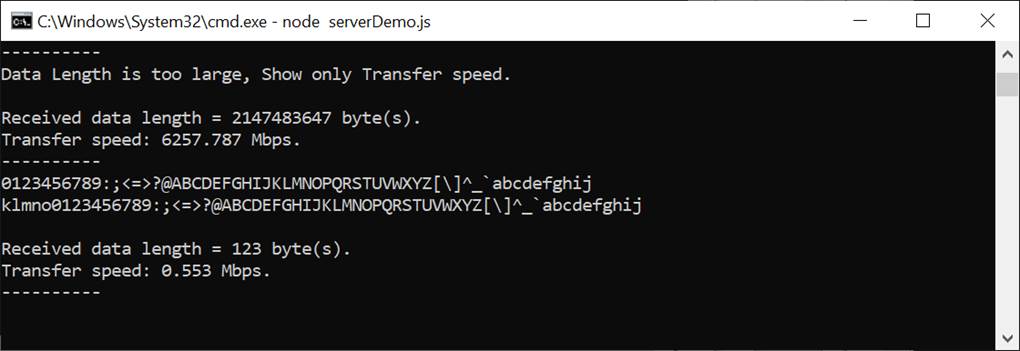
Figure 22 Server console when client upload data
6 Board setup
1) Make sure power switch is off and connect power supply to FPGA development board.
2) Connect two USB cables between FPGA board and PC via micro-USB ports.
3) Power on system.
4) Download configuration file and firmware to FPGA board by following step,
a) open Vivado TCL shell.
b) change current directory to download folder which includes demo configuration file.
c) Type “TLS10GSTest.bat”, as shown in Figure 23.

Figure 23 Example command script for download configuration file
7 Serial Console
Users can set the parameters and start a server to listen for specified client’s IP address on specified server’s port and respond the supported request from a client by using the following command. The TLS10GSdemo commands and their usage will be displayed, as shown in Figure 24. Detailed information about each command is described in topic 8.
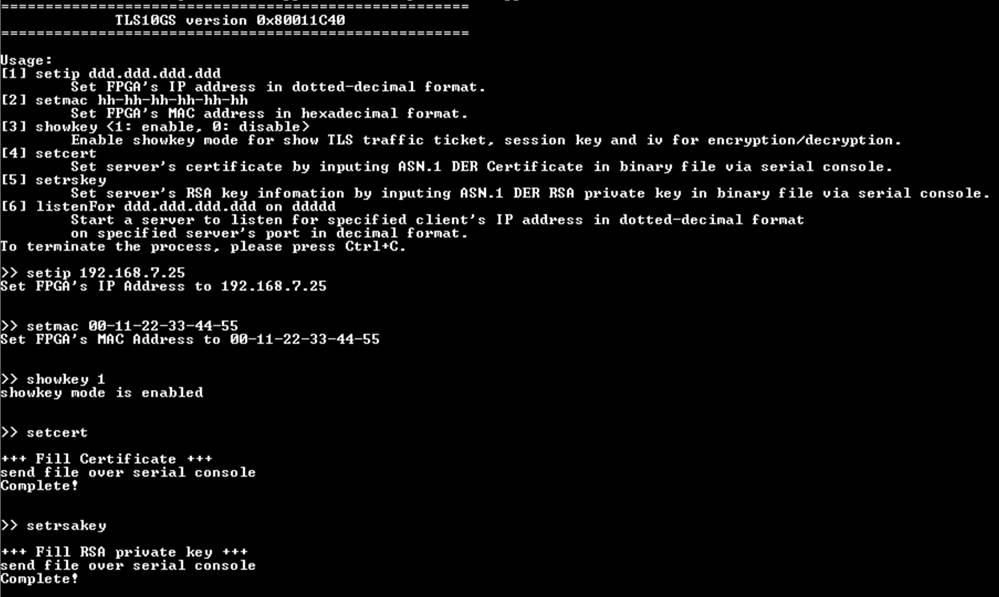
Figure 24 Serial console
8 Command detail
8.1 Set FPGA IP Address
command> setip ddd.ddd.ddd.ddd
This command is used to set FPGA’s IP address in dotted-decimal format. The default FPGA’s IP address is 192.168.7.25. Users can input setip command following by valid IP address, as shown in Figure 24.
8.2 Set FPGA MAC address
command> setmac hh-hh-hh-hh-hh-hh
This command is used to set FPGA’s MAC address in hexadecimal format. The default FPGA’s MAC address is 80-11-22-33-44-55.
8.3 Enable showkey mode
command> showkey <1: enable, 0: disable>
This command is used to enable showkey mode. When showkey mode is enabled, the TLS traffic ticket for encryption/decryption is displayed on the serial console, as shown in Figure 25. Users can use the TLS traffic ticket as (Pre)-Master-Secret log file for Wireshark* to decrypt transferred data between client and server.
*Wireshark, a network packet analyzer tool used for network troubleshooting, analysis, and security purposes.
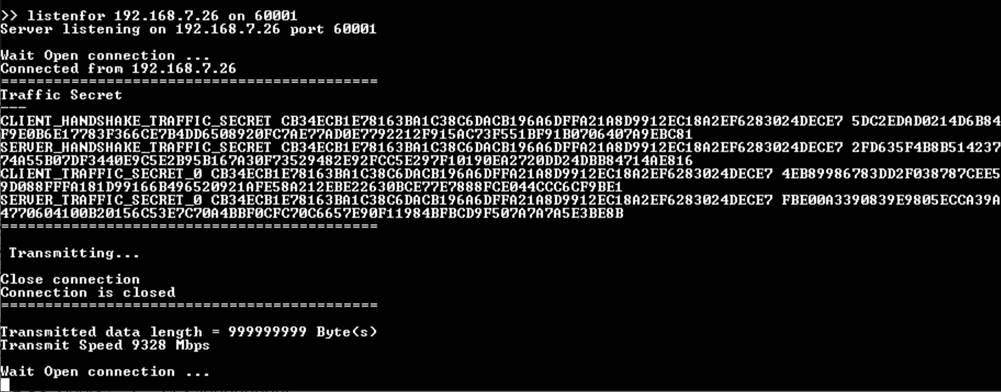
Figure 25 Serial console when showkey mode is enabled
8.4 Set certificate
command> setcert
This command is used to set the server’s certificate, which must be valid before starting the server. The supported certificate format is PKCS#7 format (.p7b).
As shown in Figure 26, A certificate in PEM format can be converted to PKCS#7 format (.p7b) using the following openssl command: openssl crl2pkcs7 -nocrl -certfile cert.pem -outform DER -out cert.p7b.
After conversion, users can send the binary certificate file (e.g., cert.p7b) via the serial console, as shown in Figure 27. In this demonstration, the maximum certificate size is limited to 8 kB.
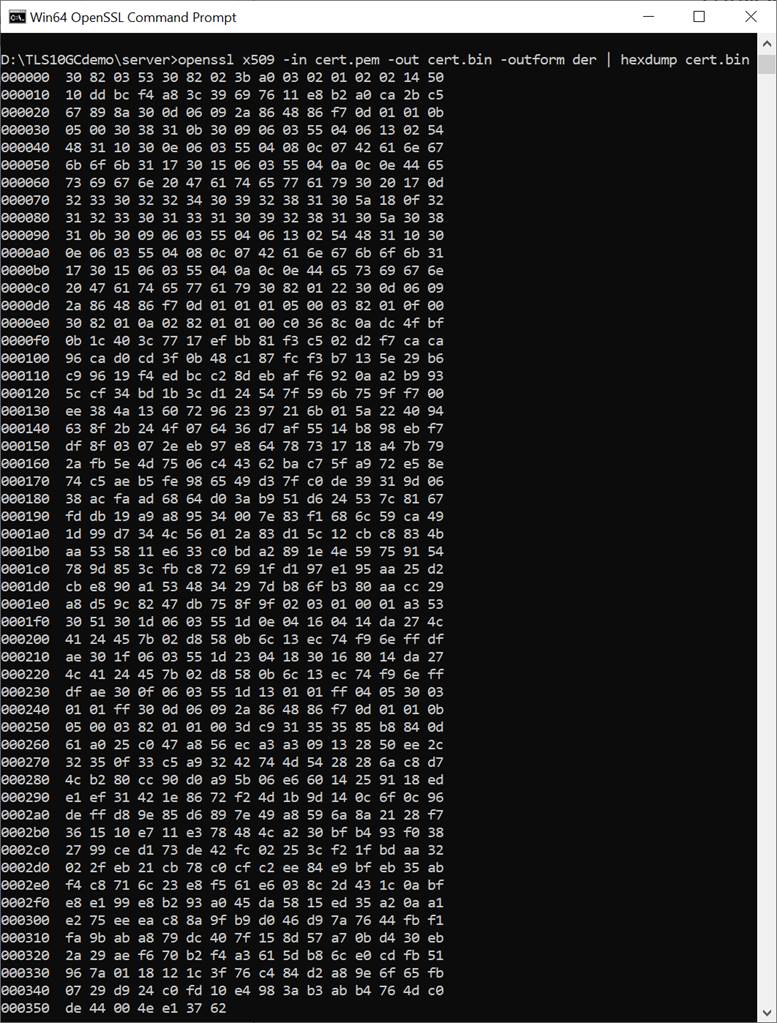
Figure 26 Certificate information from openssl command
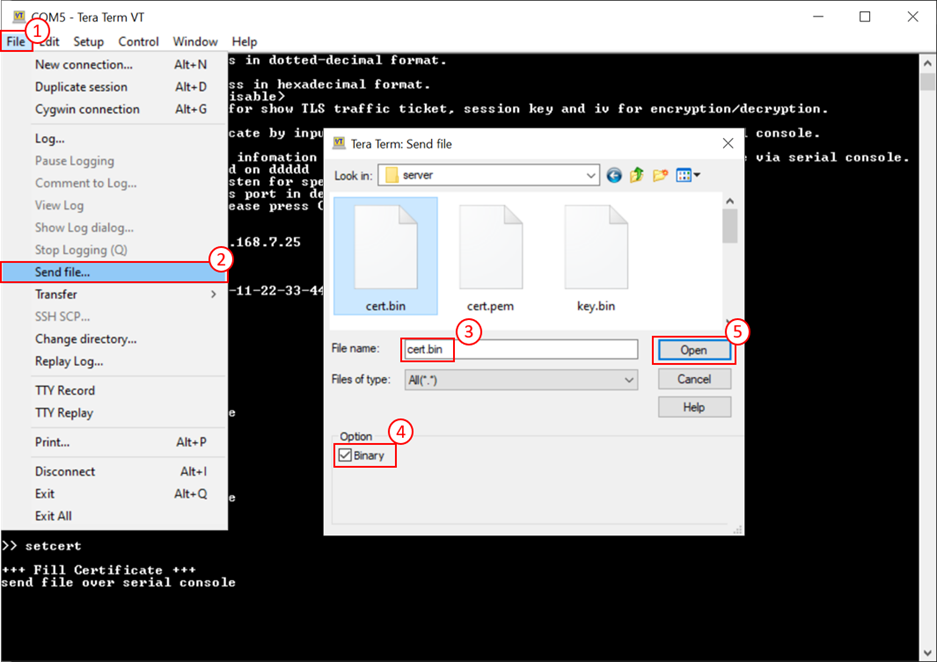
Figure 27 Example binary file transfer
8.5 Set RSA key information
command> setrsakey
This command is used to set RSA key information, which must be valid before starting the server. The supported RSA key format is ASN.1 DER in a binary file.
A as shown in Figure 28, if the RSA key is in PEM format, it can be converted to DER format using the following OpenSSL command: openssl rsa -in key.pem -out key.bin -outform der.
After conversion, users can send the binary RSA key file (e.g., key.bin) via the serial console. In this demonstration, the maximum RSA key size is limited to 2 kB.
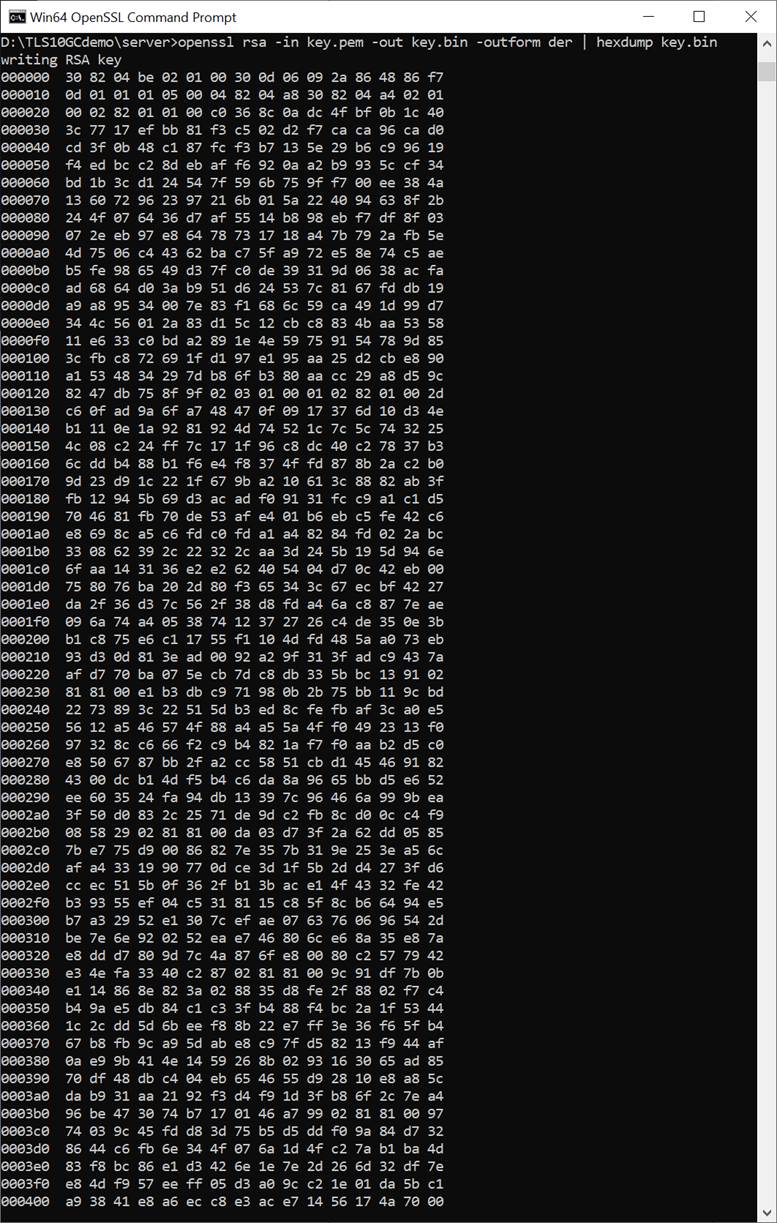
Figure 28 RSA key information from openssl command
8.6 Start a server
Command> listenFor ddd.ddd.ddd.ddd on ddddd
This command is used for starting a server to listen for a specified client’s IP address on a specified server’s port. Users can input the client’s IP address that the server is listening for and server’s port number. When a connection is established from the specified client’s IP address, the server will respond to incoming data corresponding to supported request from the client as follows.
8.6.1 GET /download/pattern/length
This request is responded to by transmitting a data pattern and length based on parameters within the request. After the transmission is complete, the data length and transmit speed are displayed, as shown in Figure 29.
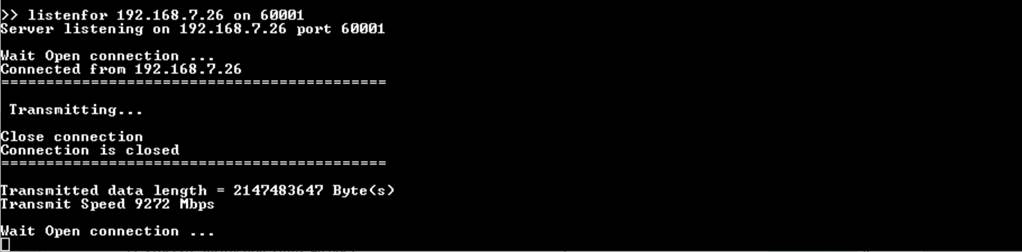
Figure 29 Serial console when transmitting large data
8.6.2 POST /upload/pattern/length
This request is responded to by receiving and verifying the data pattern and length based on parameters within the request. If the received data matches the expected data, the total length of the received data and the transfer speed are displayed on serial console.
If the received data length exceeds 16kB, “Data Length is too large, Show only Transfer speed” is displayed instead of the received data, as shown in Figure 30.
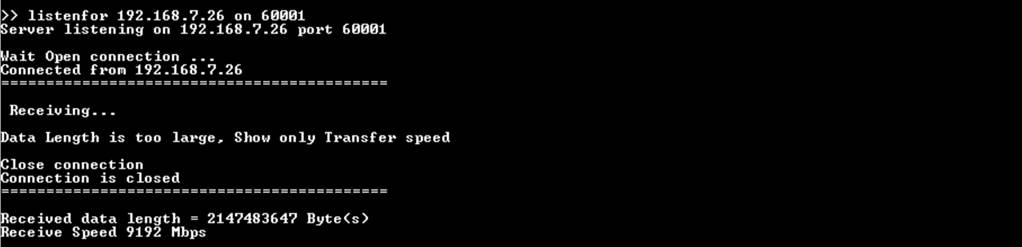
Figure 30 Serial console when receiving large data
8.6.3 POST /fullduplex/pattern/length
This request is responded to by transferring data between the client and server in full duplex mode. The server receives and verifies the data pattern and also transmits data to the client based on parameters within the request. After transmitting and receiving data are completed, the data length and transfer speed are displayed, as shown in Figure 31.
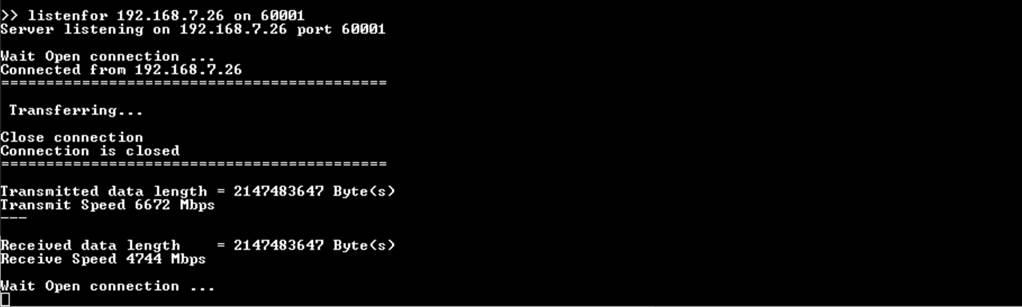
Figure 31 Serial console when full duplex mode is tested
9 Test setup when using 2 FPGA boards
9.1 Environment setup when using 2 FPGA boards
To operate TLS10GS-IP demo with TLS10GC-IP demo, please prepare following test environment.
1) FPGA development boards (ZCU102 as a server and ZCU106 as a client).
2) 10 Gb Ethernet cable:
a) 10 Gb SFP+ Passive Direct Attach Cable (DAC) which has 1-m or less length
b) 10 Gb SFP+ Active Optical Cable (AOC)
c) 2x10 Gb SFP+ transceiver (10G BASE-R) with optical cable (LC to LC, Multimode)
3) Micro USB cable for JTAG connection connecting between FPGA board and Test PC.
4) 2 Micro USB cable for UART connection connecting between ZCU102 board and Test PC and between ZCU106 board and Test PC.
5) Vivado tool for programming FPGA installed on Test PC.
6) Serial console software such as TeraTerm installed on PC. The setting on the console is
7) Baudrate=115200, Data=8-bit, Non-parity and Stop=1.
8) Batch file named TLS10GSIPTest.bat” and TLS10GCIPTest.bat” (To download these files, please visit our web site at www.design-gateway.com)
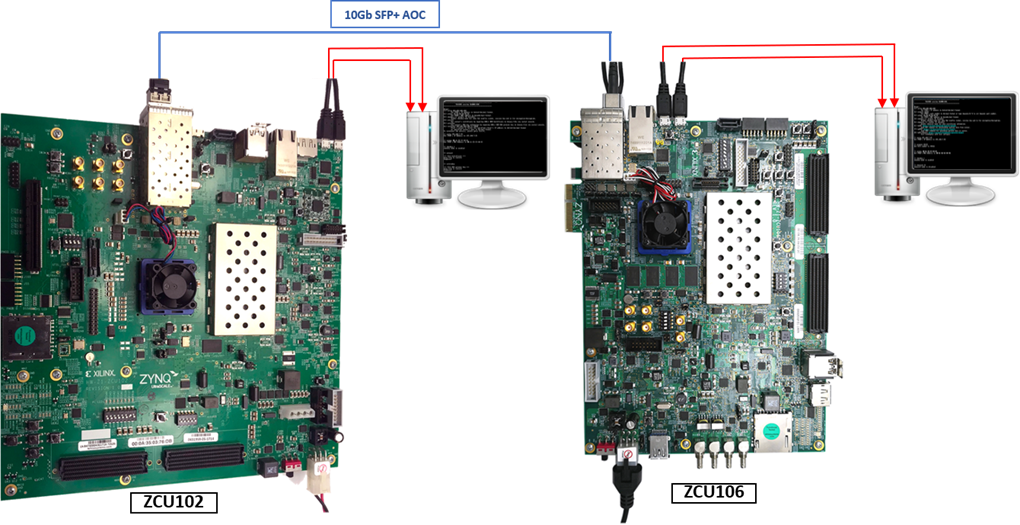
Figure 32 TLS10GS-IP demo environment when using 2 FPGA boards
Follow step 1)-8) of Topic 6 Board setup to prepare FPGA boards for running the demo. Run “TLS10GSTest.bat” to download configuration file and firmware to ZCU102 board as a server and run “TLS10GCTest.bat” to download configuration file and firmware to ZCU106 board as a client. The details of supported commands and their usage for TLS10GC-IP demo is described in the following link.
https://www.dgway.com/products/IP/TLS-IP/TLS10GCIP-instruction-xilinx-en/
9.2 Test sequence
9.2.1 Set parameters and start a server
1) Set network parameters of each FPGA board: IP address, port number, and mac address.
2) Set server’s certificate and RSA key information via serial console of server.
3)
Start a server by entering the following command in server’s console:
listenFor <client’s IP address> on <server’s port number>, as shown
in Figure 33.
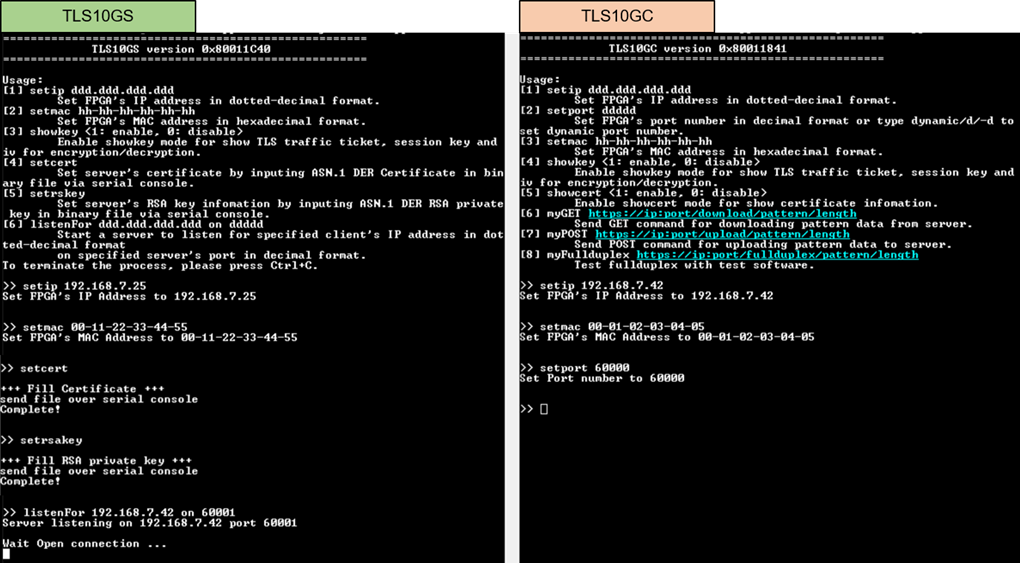
Figure 33 Server and client console when parameters are set
9.2.2 Transmit data test (Server to client)
Enter the command myGET https://ip:port/download/pattern/length through the client’s console to request the data pattern from TLS10GSdemo. Once the data transfer is complete, the transfer results and speed will be presented on both the client’s and server’s consoles, as shown in Figure 34.
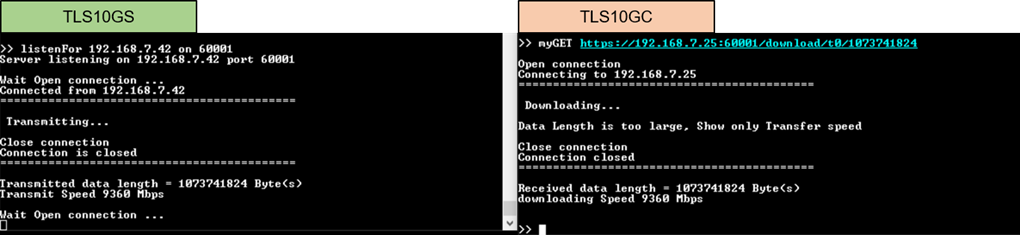
Figure 34 Server and client console when transfer data from server to client
9.2.3 Receive data test (Client to server)
Enter the command myPOST https://ip:port/upload/pattern/length through client’s console to transmit the data pattern from TLS10GC demo to TLS10GS demo. Once the data transfer is complete, the transfer results and speed will be presented on both the client’s and server’s consoles, as shown in Figure 35.
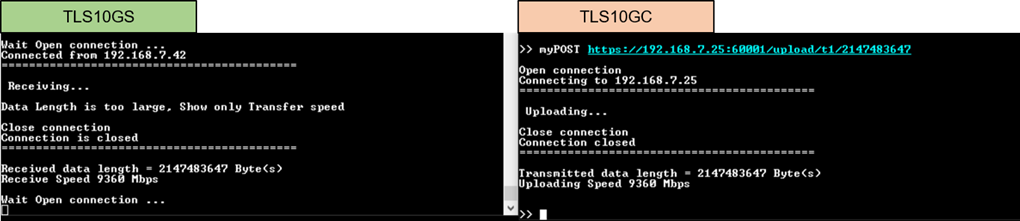
Figure 35 Server and client console when transfer data from client to server
9.2.4 Full duplex test
Enter the command myFullduplex https://ip:port/fullduplex/pattern/length through client’s console to test transferring data in full duplex mode between TLS10GS demo and TLS10GC demo. Once the data transfer is complete, the transfer results and speed will be presented on both the client’s and server’s consoles, as shown in Figure 36.
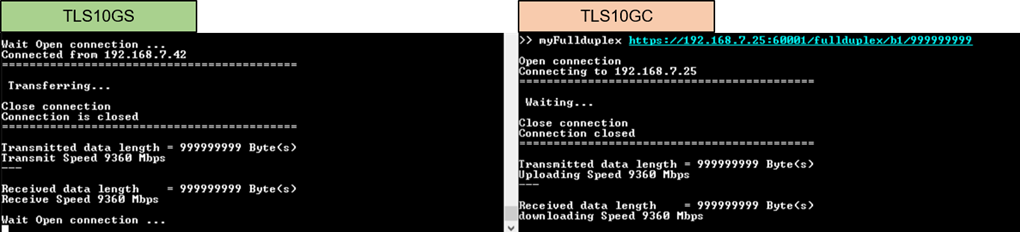
Figure 36 Server and client console when transfer data in full duplex mode
10 Test results
This demonstration, TLS10GSdemo is showcased for its ability to function as a secure server. The HTTPS protocol is chosen as the application layer to demonstrate that TLS10GS-IP can implement TLS1.3 to secure HTTP communication. The subsequent section details the test results when transferring data between each component, covering 2 main aspects: functionality testing and performance testing.
10.1 Functionality testing
TLS10GSdemo is designed to respond HTTPs clients, illustrating that TLS10GS-IP can handle TLS1.3 connection similar to the example node.js server. As shown in Figure 37 and Figure 38, a web browser requests a data pattern via the GET command and displays the received data from TLS10GSdemo on the browser, producing the same result as when requesting from node.js server.
In the case of uploading data, TLS10GSdemo is capable of receiving a data pattern from the web browser and displaying the TLS payload, as shown in Figure 40. This mirrors the process where the node.js server receives data from the web browser, as shown in Figure 39.
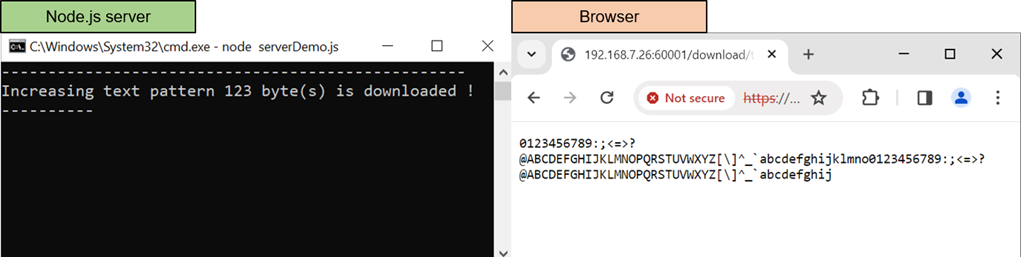
Figure 37 Test results when web browser download data from node.js server
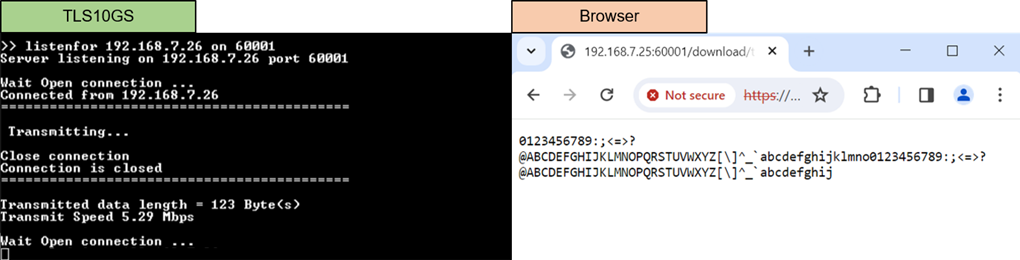
Figure 38 Test results when web browser download data from TLS10GSdemo
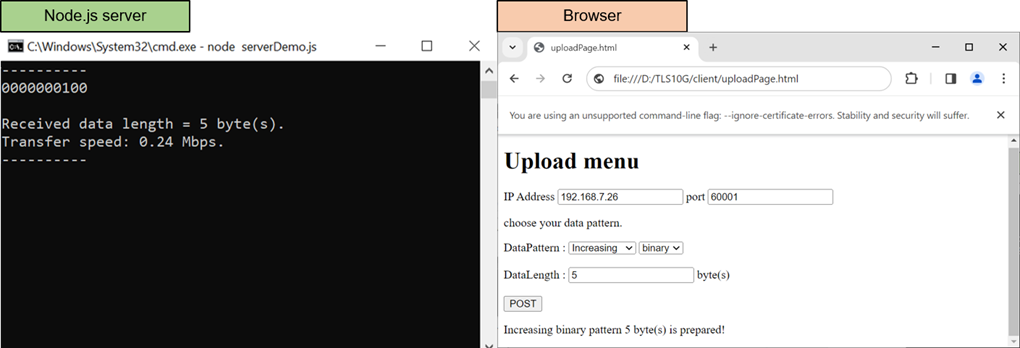
Figure 39 Test results when web browser upload data to node.js server
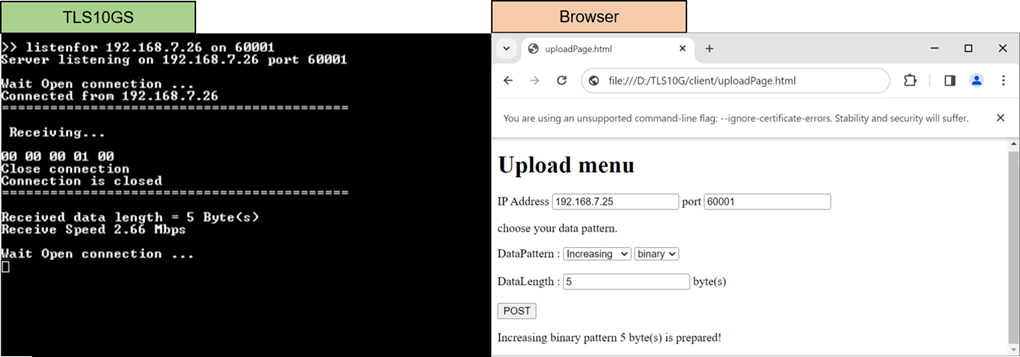
Figure 40 Test results when web browser upload data to TLS10GSdemo
10.2 Performance testing
When users use a web browser as a client to communicate with TLS10GSdemo, the CPU manages encryption/decryption during data transfer, causing a decrease in transfer speed. To achieve the maximum throughput, the "client" application is used instead.
“Client” application is designed to encrypt data before transmission through the network in Tx mode, decrypt the last data block and verify the total received data size in Rx mode. As shown in Figure 41 and Figure 42, the transfer speed is nearly by 10 Gbps and the utilization of the Intel i7 CPU is approximately 100%, as monitored by the PC's task manager. This indicates that if the CPU is tasked with encrypting/decrypting data while transferring data through the network, the transfer speed will be reduced.
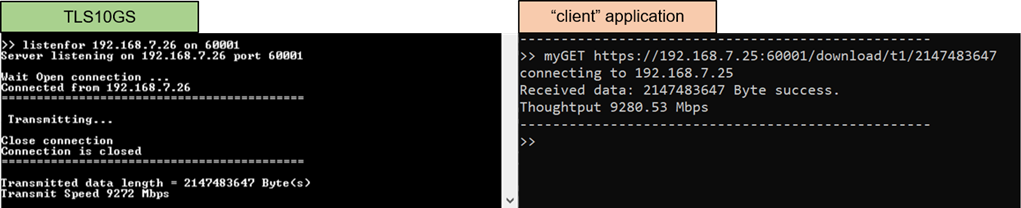
Figure 41 Test results when “client” application download data from TLS10GSdemo
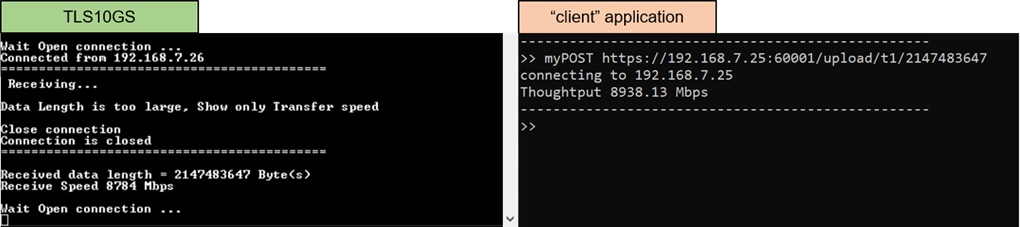
Figure 42 Test results when “client” application upload data from TLS10GSdemo
For full duplex mode, the transfer speed between “client” application and TLS10GSdemo decreases, as shown in Figure 43. This suggests that the CPU cannot handle both receiving and transmitting task in a secure connection to maintain the 10 Gbps throughput.
In the testing scenario between two FPGA boards, where TLS10GSdemo acts as the server and TLS10GCdemo as the client, cryptographic tasks, including encryption/decryption, are entirely offloaded to hardware. As shown in Figure 44, the throughput increases to 9360 Mbps, representing the maximum throughput achievable with TCP/IP in this demonstration.
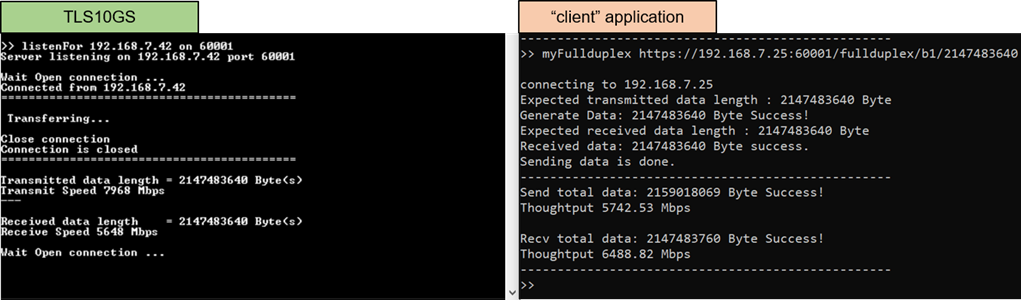
Figure 43 Full duplex test results between TLS10GSdemo and “client” application
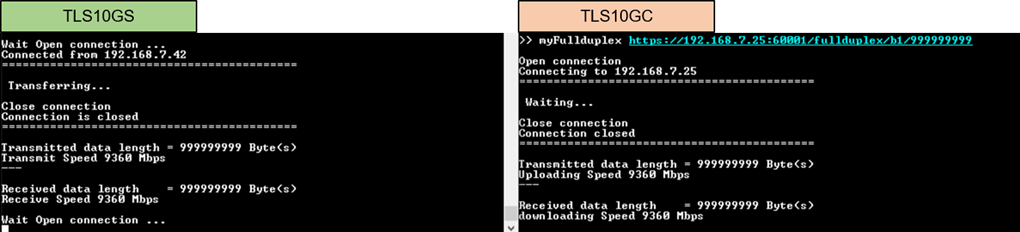
Figure 44 Full duplex test results between TLS10GSdemo and TLS10GCdemo
11 Revision History
|
Revision |
Date (D-M-Y) |
Description |
|
1.01 |
14-Jul-25 |
Update to support certificate chain |
|
1.00 |
5-Mar-24 |
Initial version release |